Connecting Your Custom Domain: Essential FAQ for First-Time Website Builders
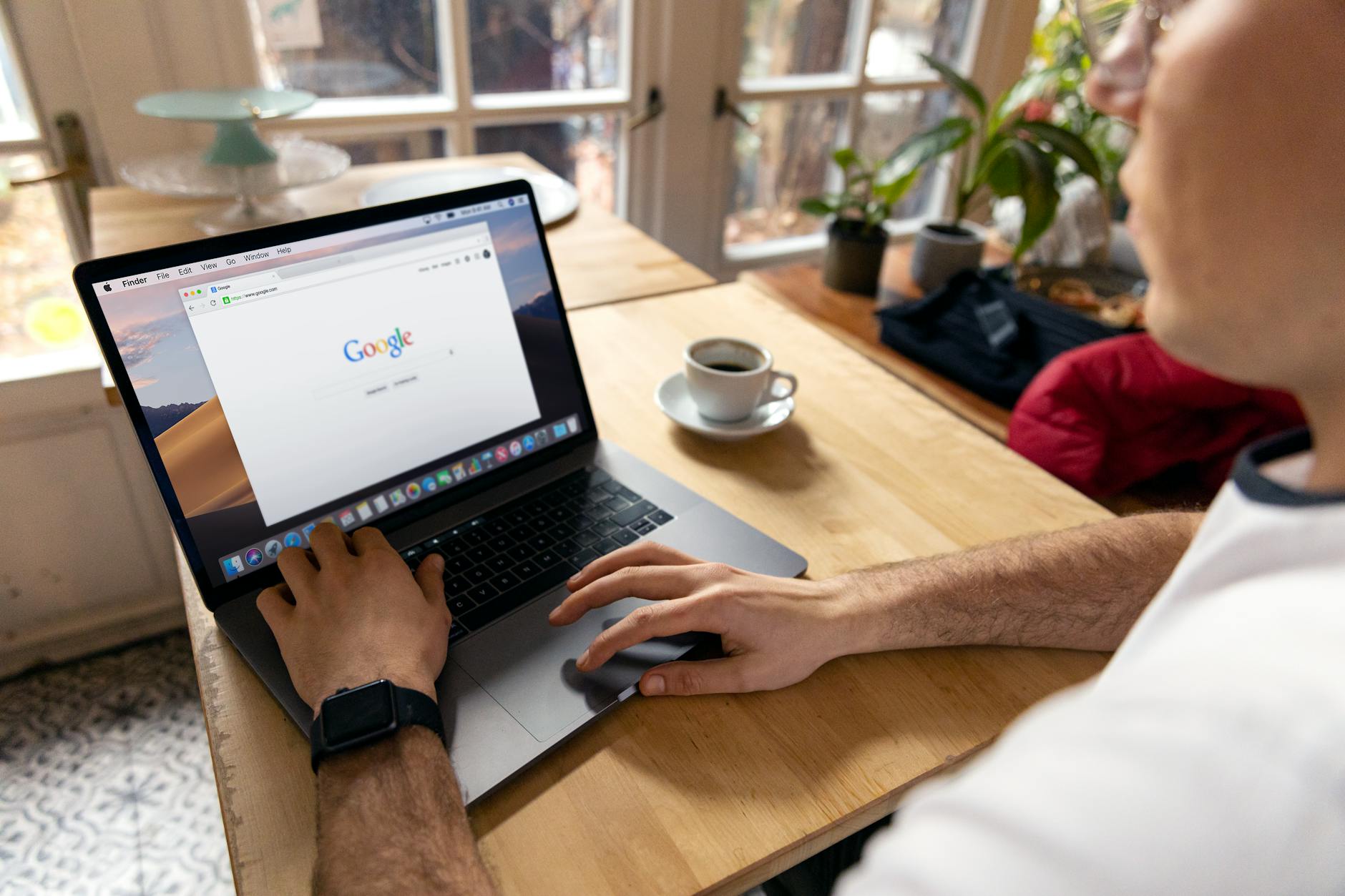
Photo: Firmbee.com · Pexels
When you build a new website, the time eventually comes when you want to ditch the default placeholder address and use a unique web address featuring your business name. Since this is the address you will print on business cards, storefront signage, and social media profiles, choosing it takes careful thought. However, actually attaching your newly purchased address to your site can make you hesitate when you run into unfamiliar terminology like DNS records or name servers.
Where Should You Start with Domain Purchase and Connection?
Using a web address involves two main steps. First, you buy your preferred address from a domain registrar like Gabia, Whois, or an international registrar. Then, you link that address in your website builder or site admin settings. It does not matter at all if the company you bought the address from is different from the platform where you built your website. By heading to the registrar's DNS settings menu and inputting a few record values, both sides link up.
In practice, people often reach out for help because a connection fails due to a typo in the ownership verification or the A record value. Even a single misplaced dot or an accidental typo in an English letter can delay the connection, so copying and pasting is always the safer route.

DNS Settings: The Essential Records You Need to Know
When connecting your purchased address to your builder, you will mainly interact with A records and CNAME records. While this might look complicated at first, the actual values you need to input are fixed, so you just fill them in according to the given instructions.
- A Record: Connects your domain address to your server's IP address.
- CNAME Record: Links addresses starting with 'www' or subdomains back to your primary address.
- TXT Record: Occasionally required for ownership verification or security certification.
Many people ask why their site does not load immediately after changing their records. This happens because global DNS servers need time to synchronize the updated address information.
| Category | Description | Timeline / Notes |
|---|---|---|
| Domain Purchase | Securing your chosen address via a registrar | Completed instantly |
| DNS Record Entry | Linking A records and CNAME values | Managed in the registrar admin page |
| Propagation Wait | Global DNS server update period | Usually finishes within a few hours |
Waiting Out the Propagation Period
It is easy to feel anxious when you finish all the settings and type the address into your browser only to find the site does not load yet. However, updates typically reflect across global servers within a few hours, so you just need to wait a little bit. Occasionally, your computer's local DNS cache might keep showing the old cached screen, so opening an incognito browser window or turning off Wi-Fi on your smartphone to check via mobile data will quickly show you that everything is working properly.
Once you finish setting up your custom address, you will finally get that satisfying feeling of having your own complete online store space. If you hit any roadblocks during the domain connection process, or if you have lingering questions about exact pricing and feature integrations, please check out the AI Website Builder and Pricing Guide pages to reach out for assistance.
FAQ
Where is the best place to buy a domain?
You can purchase a domain from any domestic registrar like Gabia or Whois, or an international registrar, and it makes no difference when connecting it to your builder. Simply secure your preferred address wherever it is most convenient for you.
I changed my settings, but my site is not loading.
It usually takes a few hours for DNS information to propagate across global servers. As long as there are no typos, simply wait a little longer or try accessing the site using mobile data.
What happens to the default address provided to me?
After connecting your custom domain, your original subdomain will remain active and accessible. You can simply share your newly purchased custom domain as your primary public-facing address.
Put it into practice
Describe what you need and your website is ready in minutes, with blog marketing running every day.